Light Bulbs


 Outdoor Lights



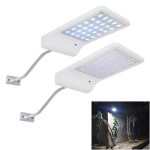
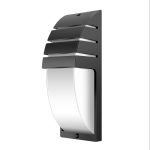


 Wall Lights


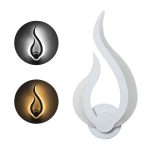

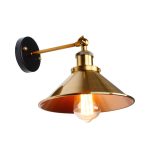


 Lamps


 Ceiling Lights






The SOFTWARE error on your Bose Smart means the speaker was unable to complete a firmware update, usually because the download was interrupted or the update file didn’t install correctly. Restarting the update process through the Bose app while keeping the speaker close to your router will fix most cases.
| Error code | SOFTWARE |
|---|---|
| Meaning | A firmware or software update did not download or install successfully on the speaker |
| Severity | Medium — the speaker may still play audio but new features and bug fixes won’t apply until it’s resolved |
| Time to fix | 10–20 minutes |
| Tools needed | Smartphone with Bose app, stable Wi-Fi connection |
What the SOFTWARE error means
Bose Smart speakers regularly receive firmware updates over Wi-Fi to add features, fix bugs, and improve performance. When the update process fails partway through — due to a dropped connection, low signal, or a server timeout — the speaker flags this as a SOFTWARE error and won’t move forward until the update completes.
This is a common issue across Bose’s connected audio range, and it’s similar to update failures seen on other Bose devices, like the issues covered in the Bose Soundbar NW-2-5 Error Code: Causes and Fixes guide.
Common causes
- Weak or unstable Wi-Fi signal during the update download
- Speaker placed too far from the router
- Bose app closed or phone went to sleep mid-update
- Router blocking the firmware server due to firewall settings
- Speaker power cut or unplugged during the update
- Outdated Bose app version causing a mismatch with the speaker firmware
How to fix the SOFTWARE error
- Check your Wi-Fi connection — Make sure your router is online and your phone is connected to the same 2.4GHz or 5GHz network as the speaker.
- Move the speaker closer to the router — Temporarily place the speaker within a few metres of the router to rule out signal drop-outs during the update.
- Update the Bose app — Open your phone’s app store and install any pending updates for the Bose Music or Bose app before retrying.
- Restart the speaker — Unplug the speaker for 30 seconds, plug it back in, and wait for it to fully boot before starting the update again.
- Retry the update from the app — Open the Bose app, go to the speaker’s settings, and select the software update option. Keep the app open and your phone awake until it finishes.
- Factory reset if the error repeats — If the update keeps failing, reset the speaker to factory settings and set it up again, which often clears a corrupted update file.
FAQ
Can I still use my speaker if the software update fails?
Yes, in most cases the speaker will continue to play audio normally, but it won’t have the latest features or bug fixes until the update completes.
Why does the update keep failing at the same point?
This usually points to a consistent Wi-Fi issue, such as interference or a weak signal in that spot, rather than a problem with the update file itself.
Will a factory reset delete my saved settings?
Yes, a factory reset clears saved Wi-Fi networks, presets, and Bluetooth pairings, so you’ll need to set the speaker up again from scratch.